
How can RAM speed cause corruption in Windows 11? Why does the computer repeatedly repair the file system or scan the drive for errors at startup, or suffer system corruption despite having new, working components?
Can RAM speed cause corruption in Windows 11?
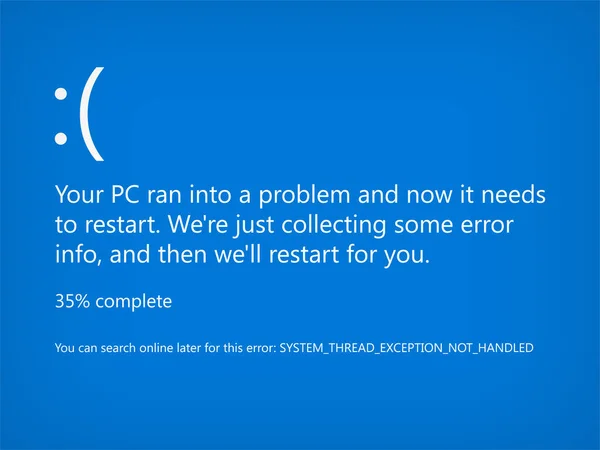
A problem with my studio computer:
Every few startups, my computer found errors on the M.2 SSDs and tried to repair them. Unfortunately, this often caused BSODs, tens of thousands of application errors in the Windows 11 event log and unstable programs. There were also problems with Microsoft Store, the desktop and the Start menu bar. Sometimes the system would no longer boot after a drive repair, which was especially frustrating with around 2000 programs and plugins installed. I therefore cloned my M.2 SSD once or twice a week and had to restore a working system from a clone about once a month, while the Windows event log continued to record increasing numbers of system errors.
The solution came after many months. Following several BIOS updates, I found that disabling the 6600 MHz XMP profile for my DDR5 memory and switching to 4800 MHz stopped the problems. It was disappointing, as I had paid over €300 for the memory specifically to use higher clock speeds.
Possible causes and solutions:
RAM running at too high a clock speed can make Windows 11 unstable, causing read/write errors and file system corruption. Frequent BSODs and forced file system repairs during startup can be symptoms. Lowering RAM speed to a stable level often resolves these problems.
Windows 11 instability and file system corruption may be related to RAM settings. Higher memory speeds can cause read/write errors that damage the SSD's file system. Memory errors can lead to BSODs and file system damage. Consider lowering RAM speed or adjusting timings and voltages.
Check and repair the file system: use tools such as SFC (System File Checker) and DISM (Deployment Imaging Service and Management) to repair corrupted system files.
CHKDSK: run CHKDSK to check and repair errors on the SSD.
System Restore: if the problem keeps recurring, consider restoring an earlier stable system state or resetting the system.
Adjusting RAM settings and regularly checking file system integrity may help prevent further problems.
A solution for an unstable system – PowerShell:
An administrator Command Prompt or PowerShell may help. Here are commands that can be useful:
DISM /Online /Cleanup-Image /CheckHealth
DISM /Online /Cleanup-Image /ScanHealth
DISM /Online /Cleanup-Image /RestoreHealth DISM.exe /Online /Cleanup-Image /StartComponentCleanup
Reset system applications, install packages and restore the Start menu:
Get-AppxPackage -AllUsers | Foreach {Add-AppxPackage -DisableDevelopmentMode -Register "$($_.InstallLocation)\AppXManifest.xml"}
Get-AppxPackage -AllUsers | Foreach {Add-AppxPackage -DisableDevelopmentMode -Register "$($_.InstallLocation)\AppXManifest.xml"}
Get-AppxPackage -AllUsers | Foreach {Add-AppxPackage -DisableDevelopmentMode -Register "$($_.InstallLocation)\AppXManifest.xml"}
Start menu
Get-AppxPackage Microsoft.Windows.StartMenuExperienceHost | Foreach {Add-AppxPackage -DisableDevelopmentMode -Register "$($_.InstallLocation)\AppXManifest.xml"}
Start menu search
Get-AppXPackage -Name Microsoft.Windows.Search | Foreach {Add-AppxPackage -DisableDevelopmentMode -Register "$($_.InstallLocation)\AppXManifest.xml"}
Microsoft Store
Get-AppxPackage *WindowsStore* | Foreach {Add-AppxPackage -DisableDevelopmentMode -Register "$($_.InstallLocation)\AppXManifest.xml"}
Finally, repair the file system
chkdsk /f /r